
Marking a Trip Arrived/Performed
When a vehicle has reached its destination, the trip can be marked in Dispatch as arrived/performed.
Before you begin
About this task
- Arrived trips are when the vehicle arrives at the location but has not yet performed the task (for example, no passenger has boarded or alighted, the break has not been taken).
- Performed trips are when the vehicle has already arrived and performed the event (for example, the passenger has boarded or alighted and the vehicle is ready to leave),
Procedure
-
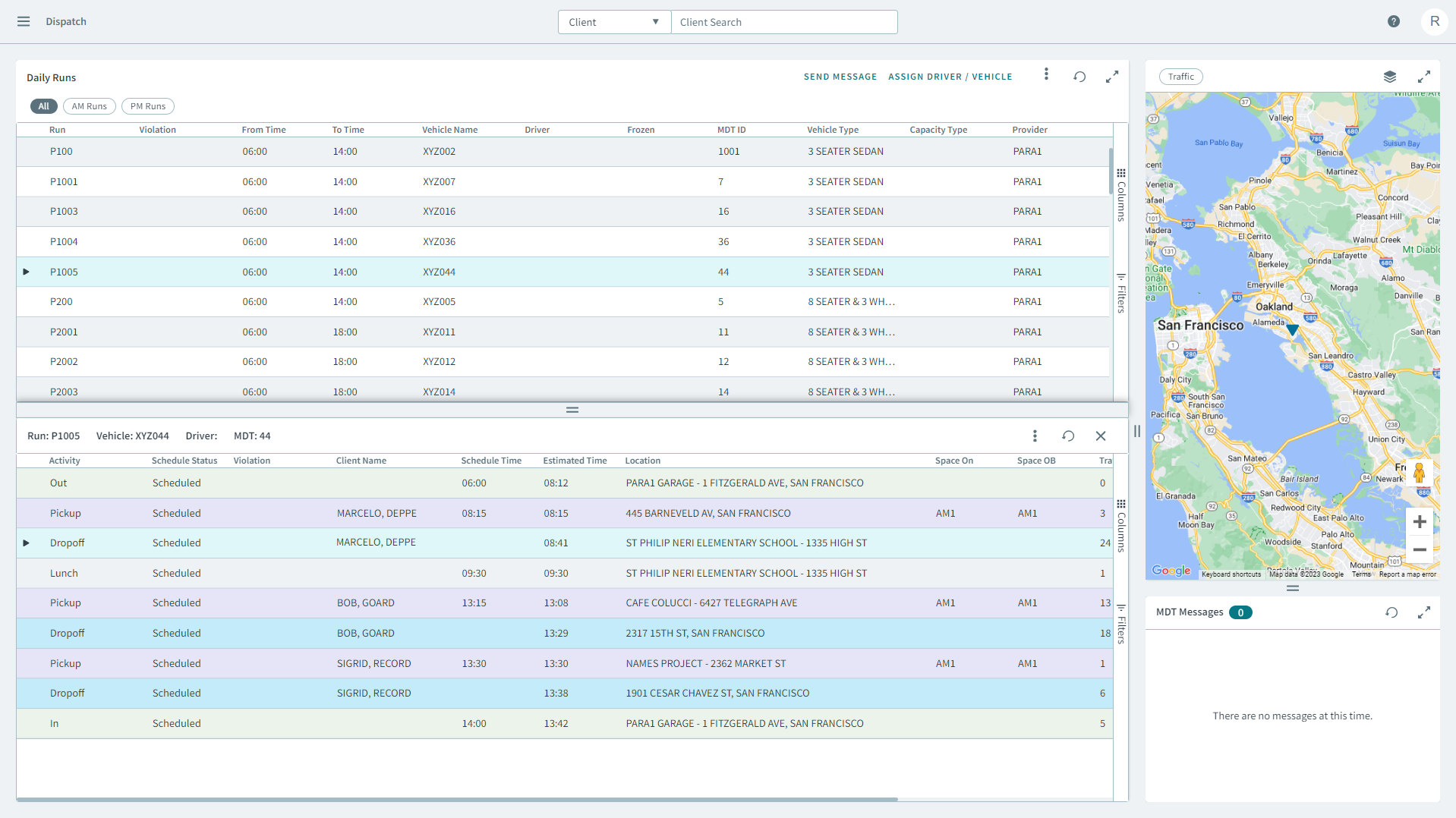
Select a run from the grid.
The run's itinerary displays in a separate pane below.
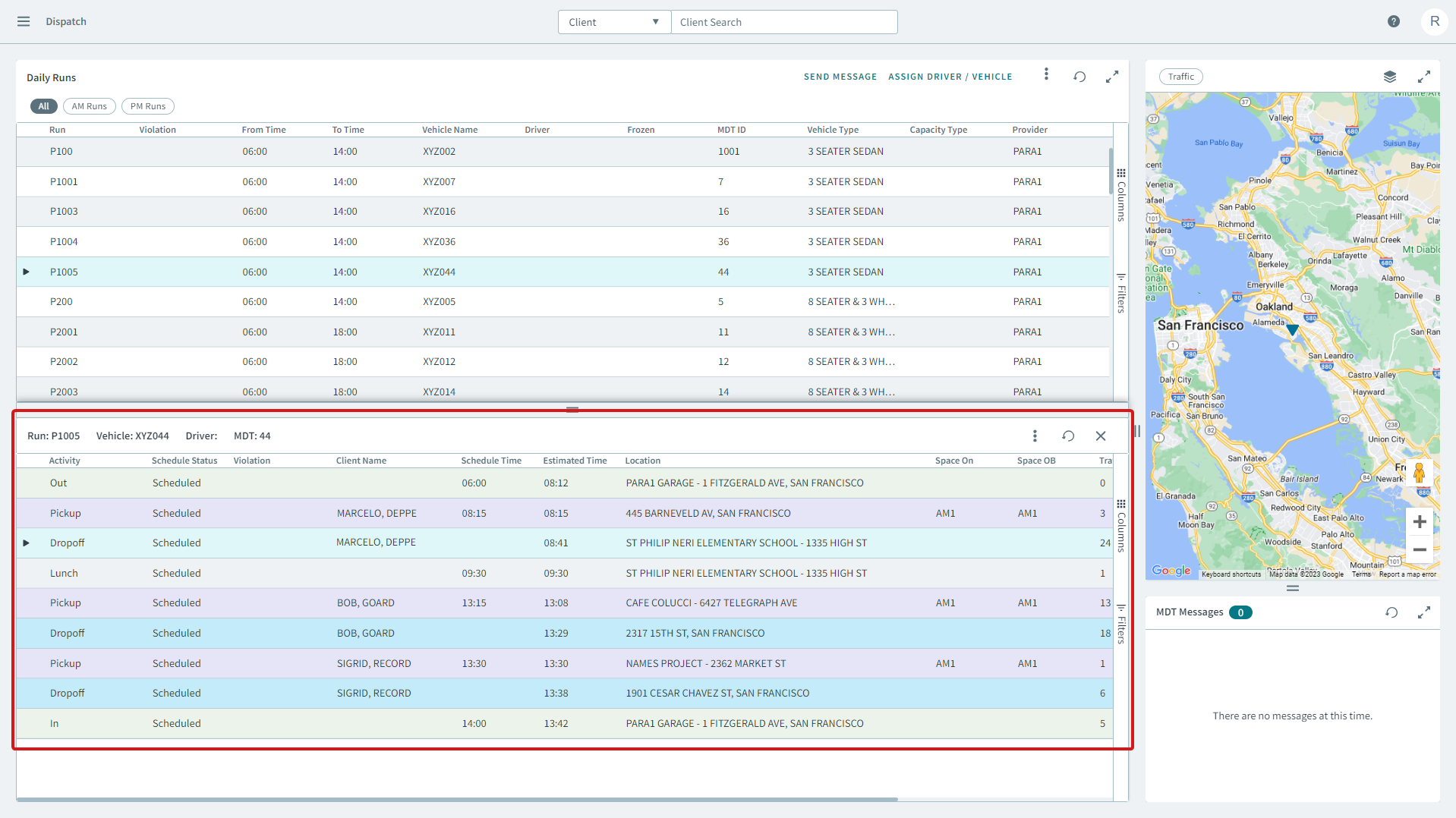
- Right-click a pick-up or drop-off from the run's itinerary, and in the shortcut menu, click Mark Arrived/Performed.
-
In the Arrived tab, enter a time (hh:mm) in the
Time box, or click Estimated
to generate an arrival time.
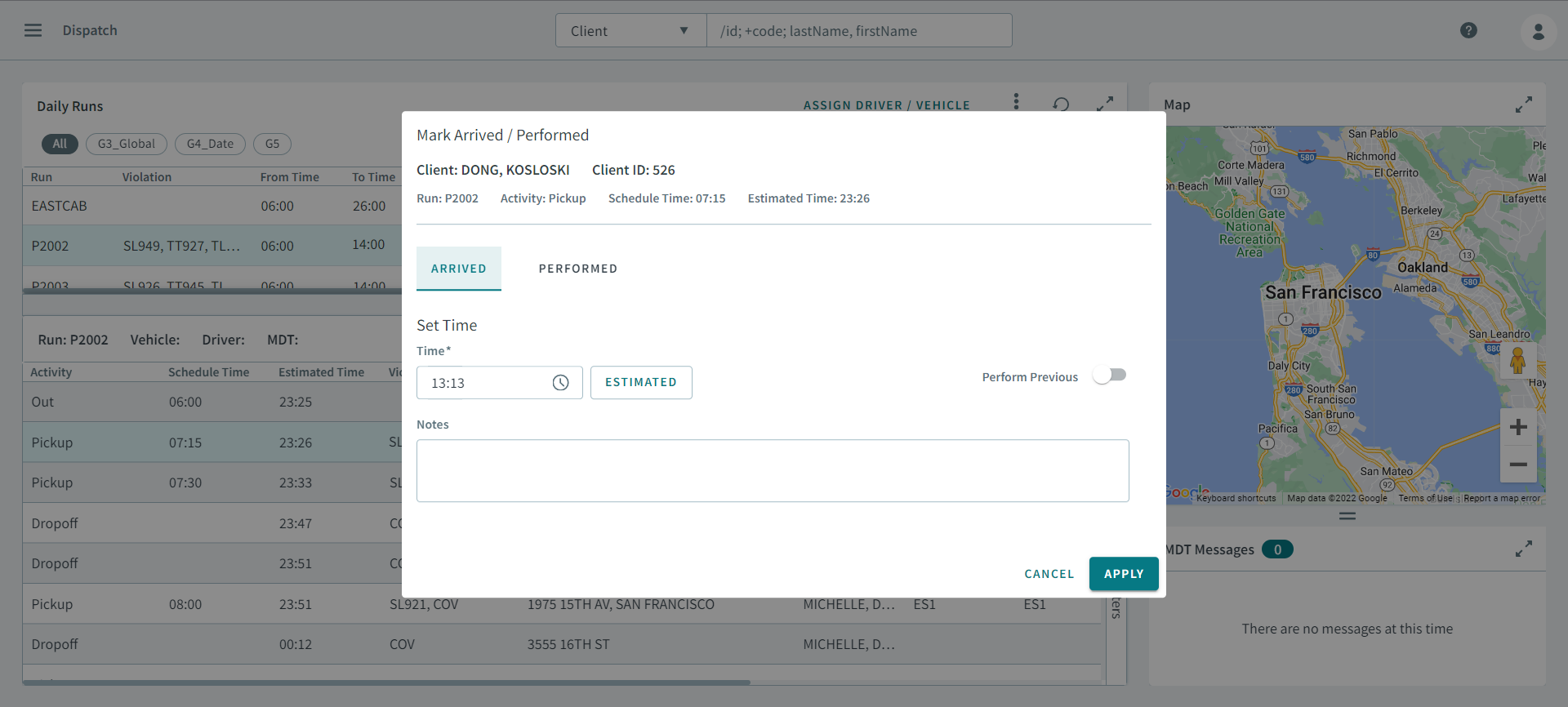
- Optional: Turn the Perform Previous toggle on.
- Optional: Enter relevant information about the arrival in Notes.
-
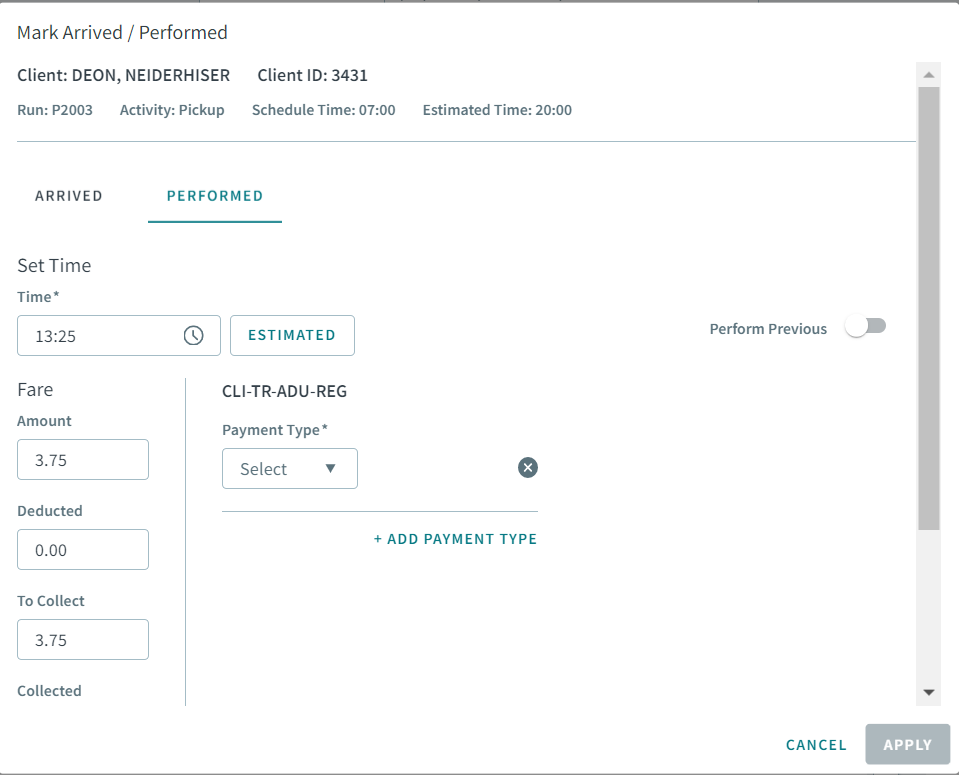
Click the Performed tab.
The Performed tab is open.
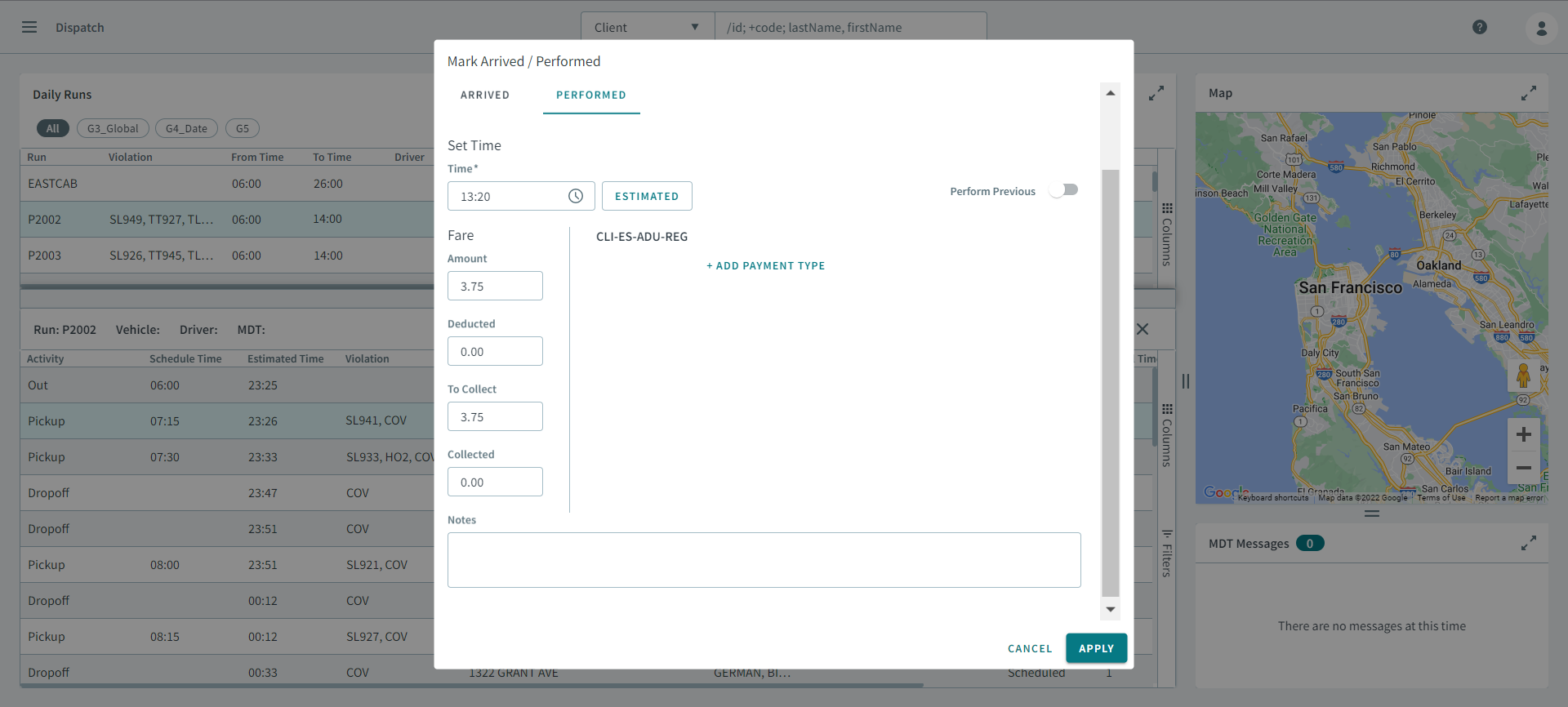
- In the Performed tab, enter a time (hh:mm) in the Time box, or click Estimated to generate a performed time.
- Optional: Turn the Perform Previous toggle on.
- Optional:
Click Add Payment Type.
-
Select a type from the Payment Type dropdown
menu.
Remember:You must setup Payment Types ancillary data to see payment types in the dropdown menu.
-
Select a type from the Payment Type dropdown
menu.
- Optional: If you need to add another payment type, click Add Payment Type.
- In Note, enter relevant trip information.
- Click Apply.