
Sending a Message to a Driver
You can send messages to a driver if the vehicle has on-board MDT.
Before you begin
About this task
Sending messages through Dispatch allows you to treat messages like action items, to which you can set statuses as necessary. For example, if you send a message to the driver about taking an extra trip, you can set the message as Response Required, pending a response from the driver.
Procedure
-
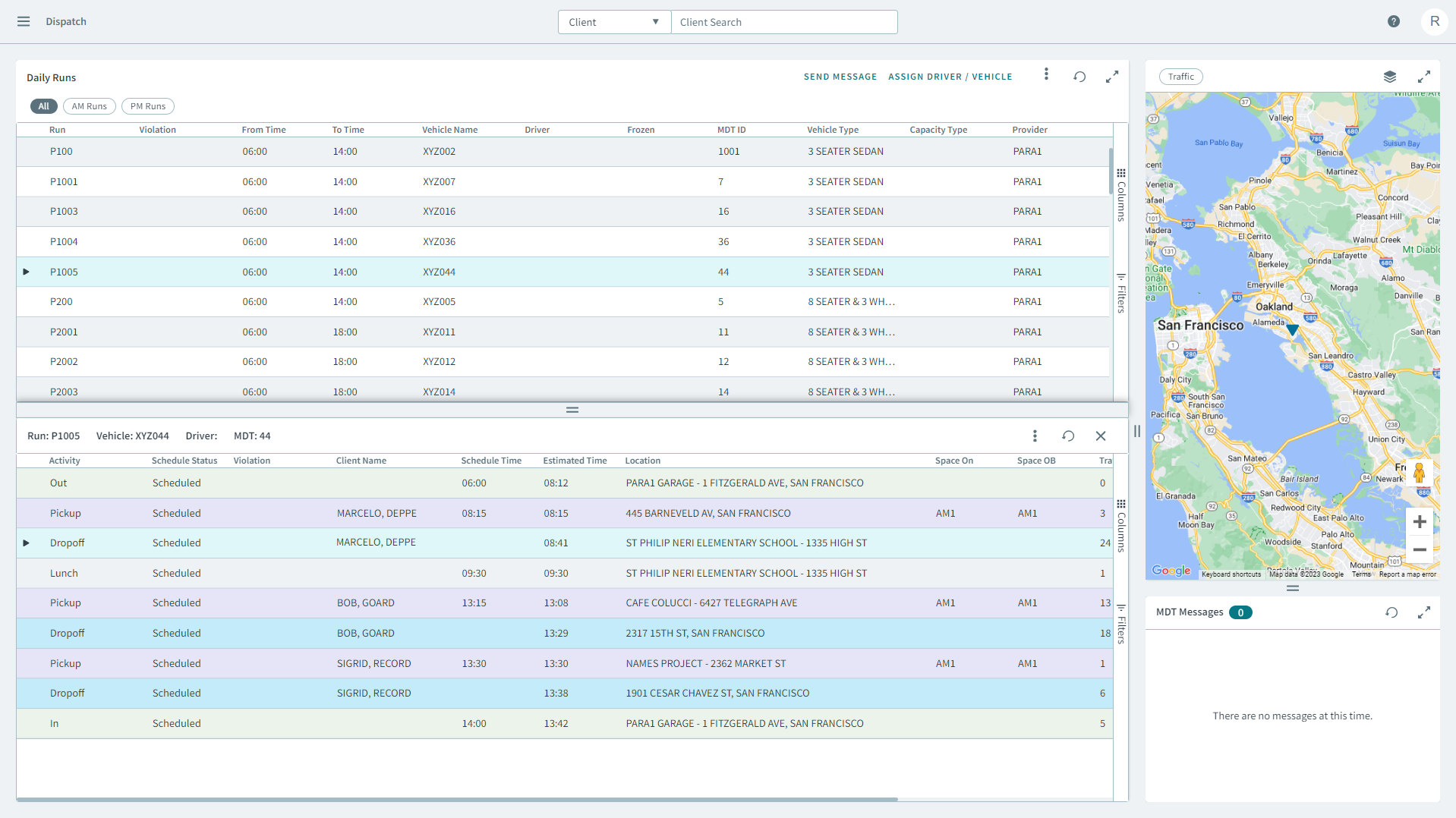
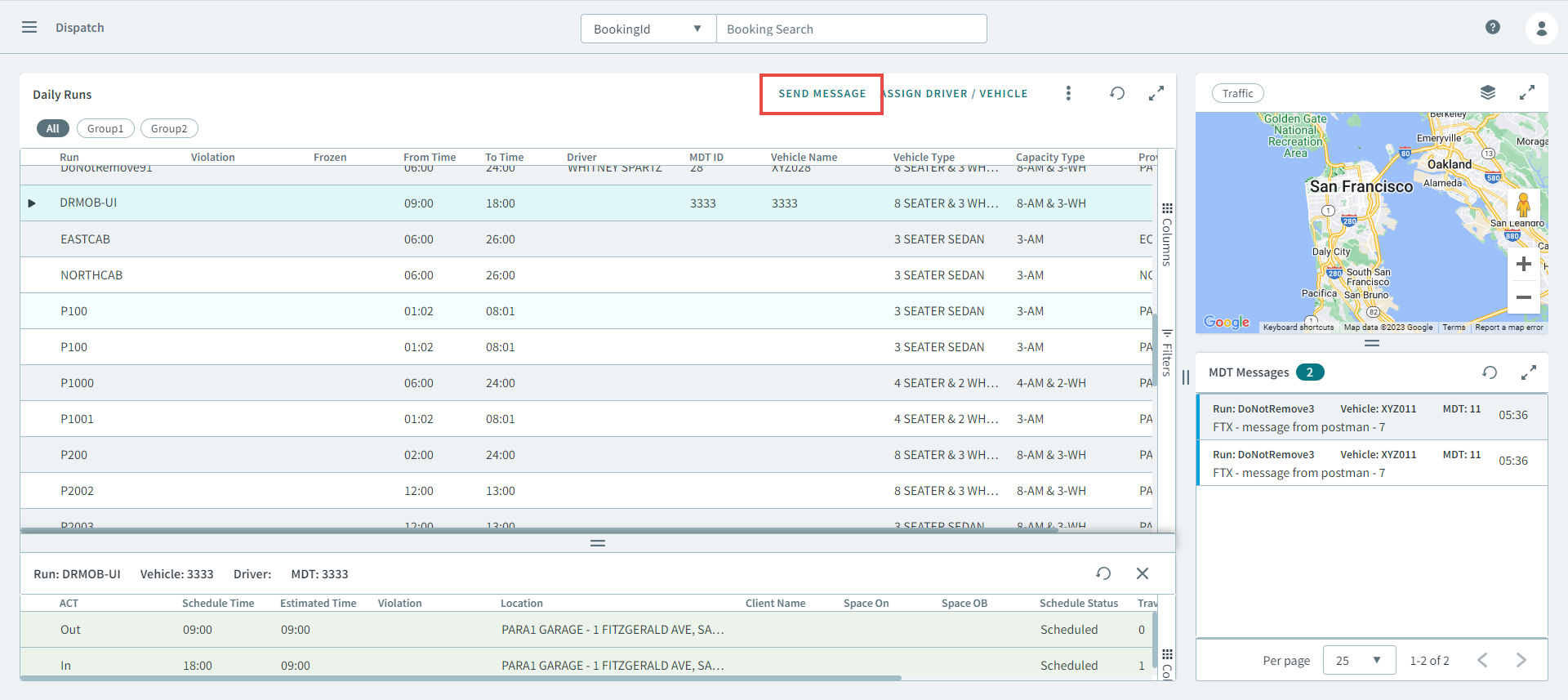
In the Daily Runs pane, select a run, and then click
Send Message in the grid header.
Tip:You can also right-click a run and select Send Message from the pop-up window.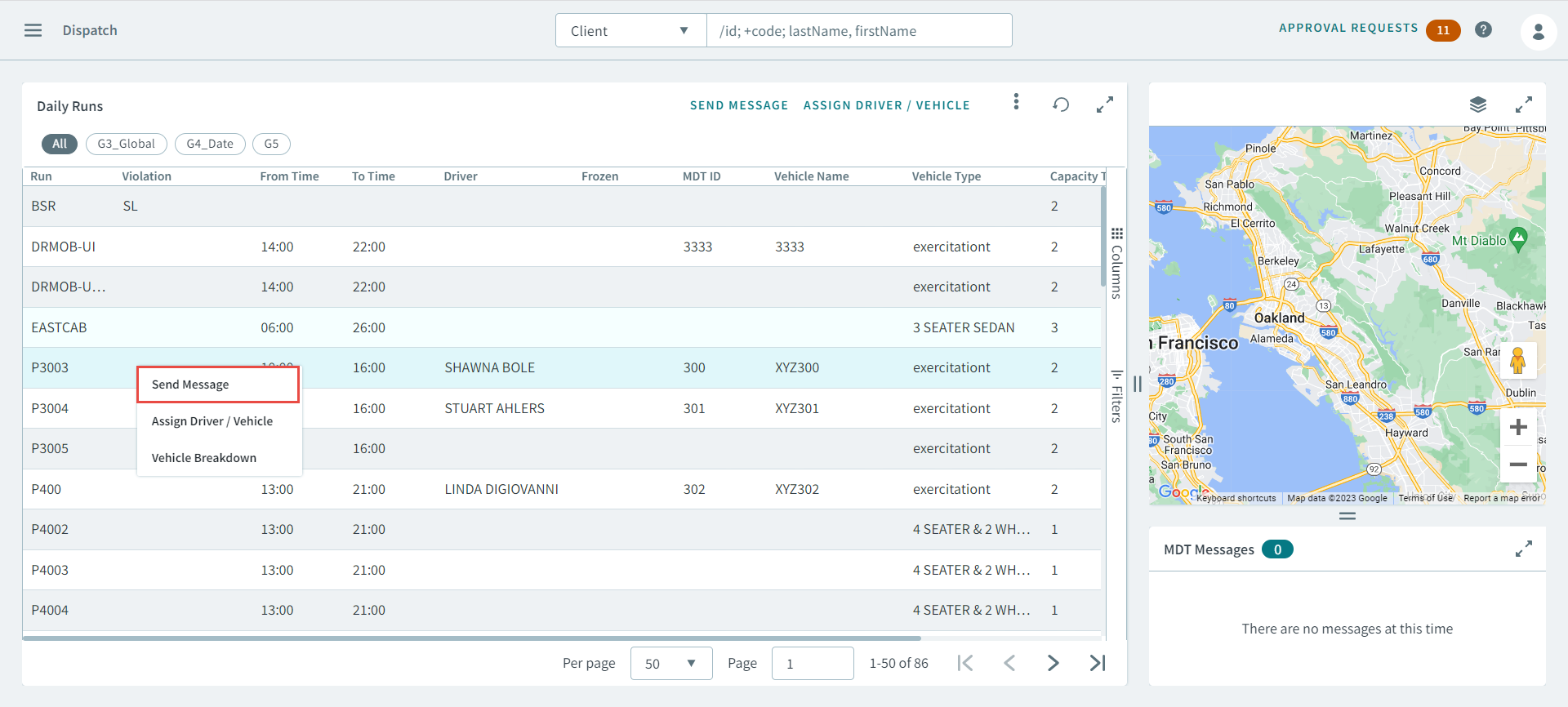 The Send Message dialog box opens.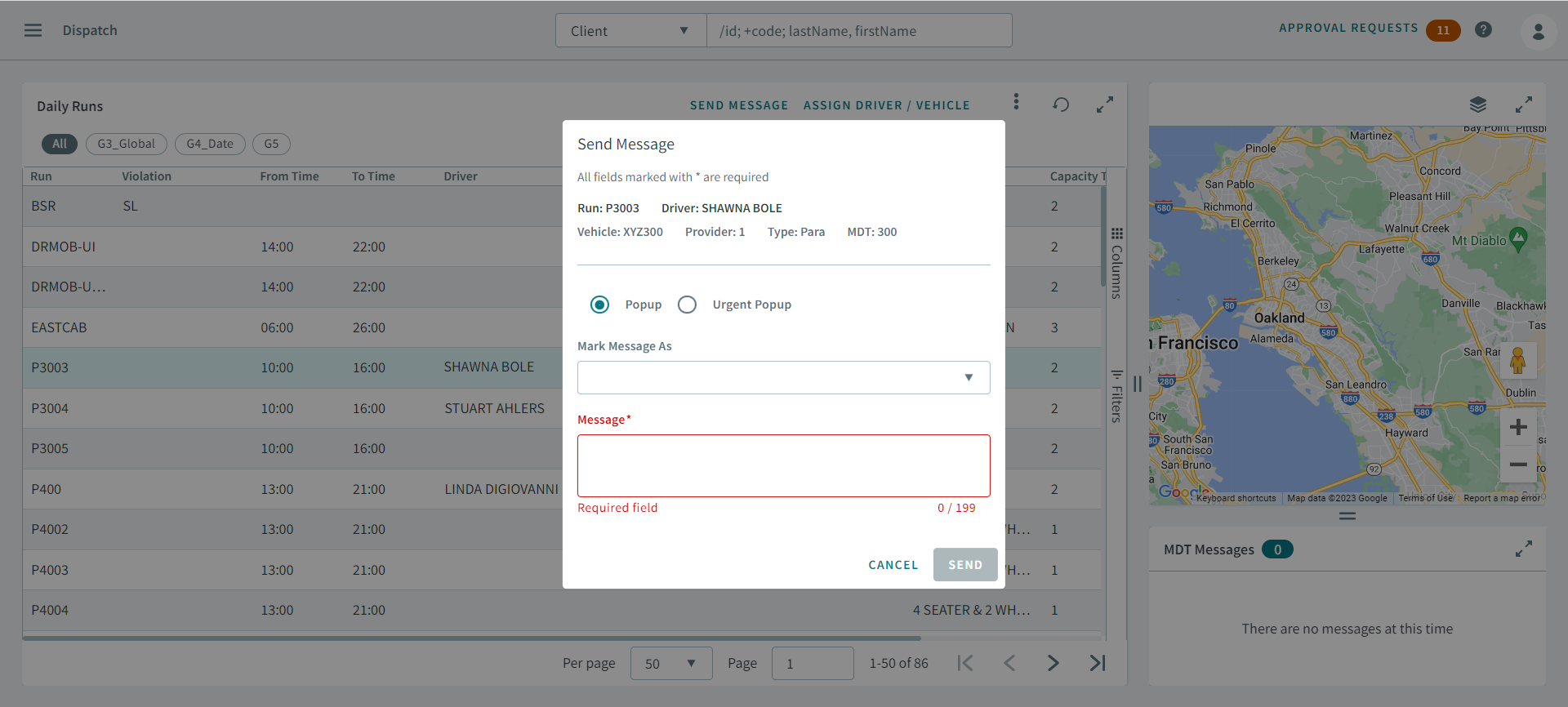
- Select Popup or Urgent Popup for how the message will be displayed to the driver.
-
In Mark Message As, select the following options from
the drop-down list to notify the driver of the type of message and what action
is needed:
- Normal
- Acknowledgement Required
- Response Required
- In the Message box, enter the information that you want to send to the driver.
- Click Send.