
Assigning a Driver/Vehicle to a run
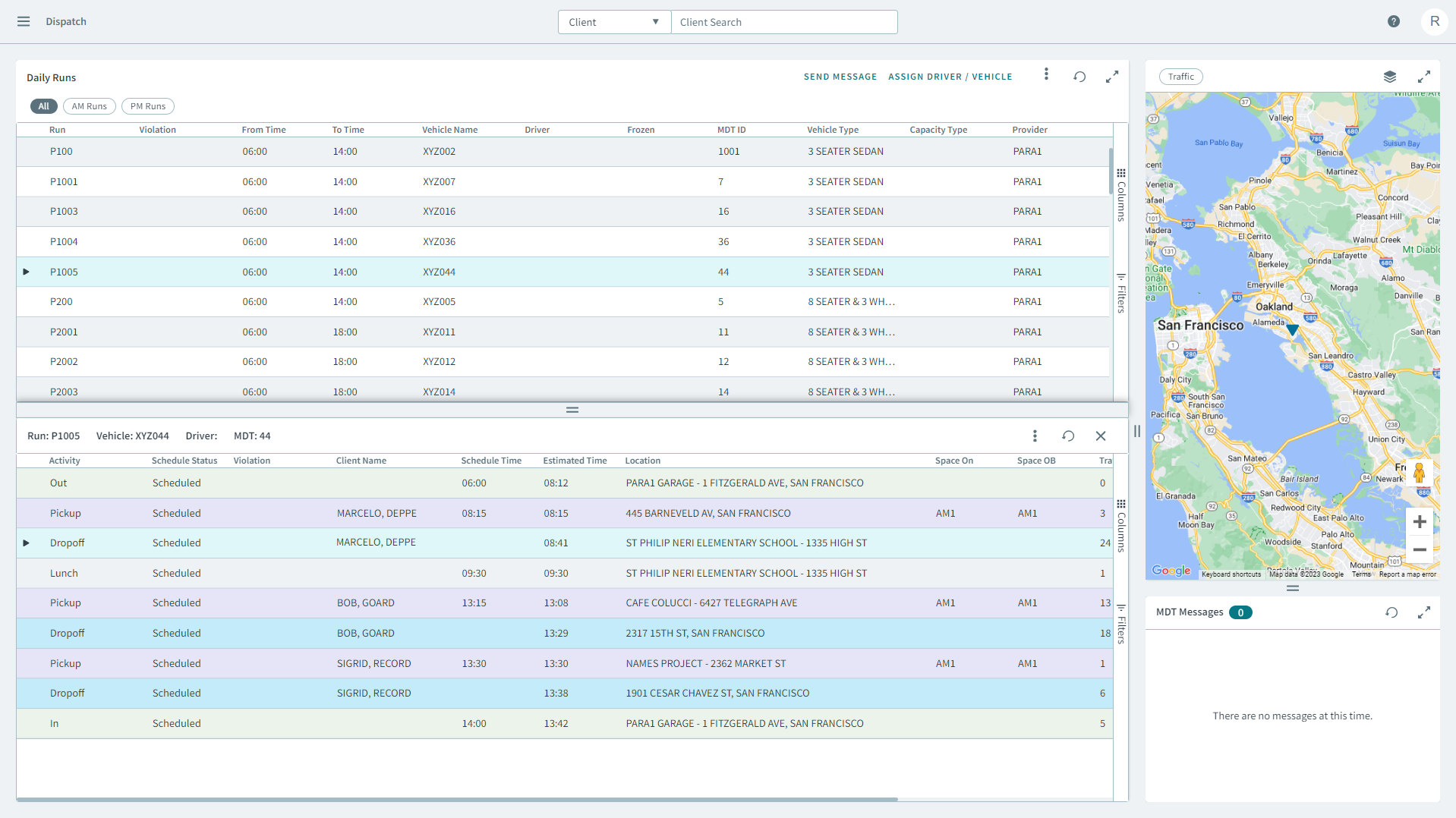
Use the Dispatch page to assign a driver and vehicle to a run.
Before you begin
About this task
The Dispatch page allows you to assign permanent vehicles and drivers for daily runs. Many sites, however, prefer to assign vehicles and drivers to runs on or just before the day of operation.
When you assign a vehicle to a run from Dispatch, confirm that you have the correct schedule.
Procedure
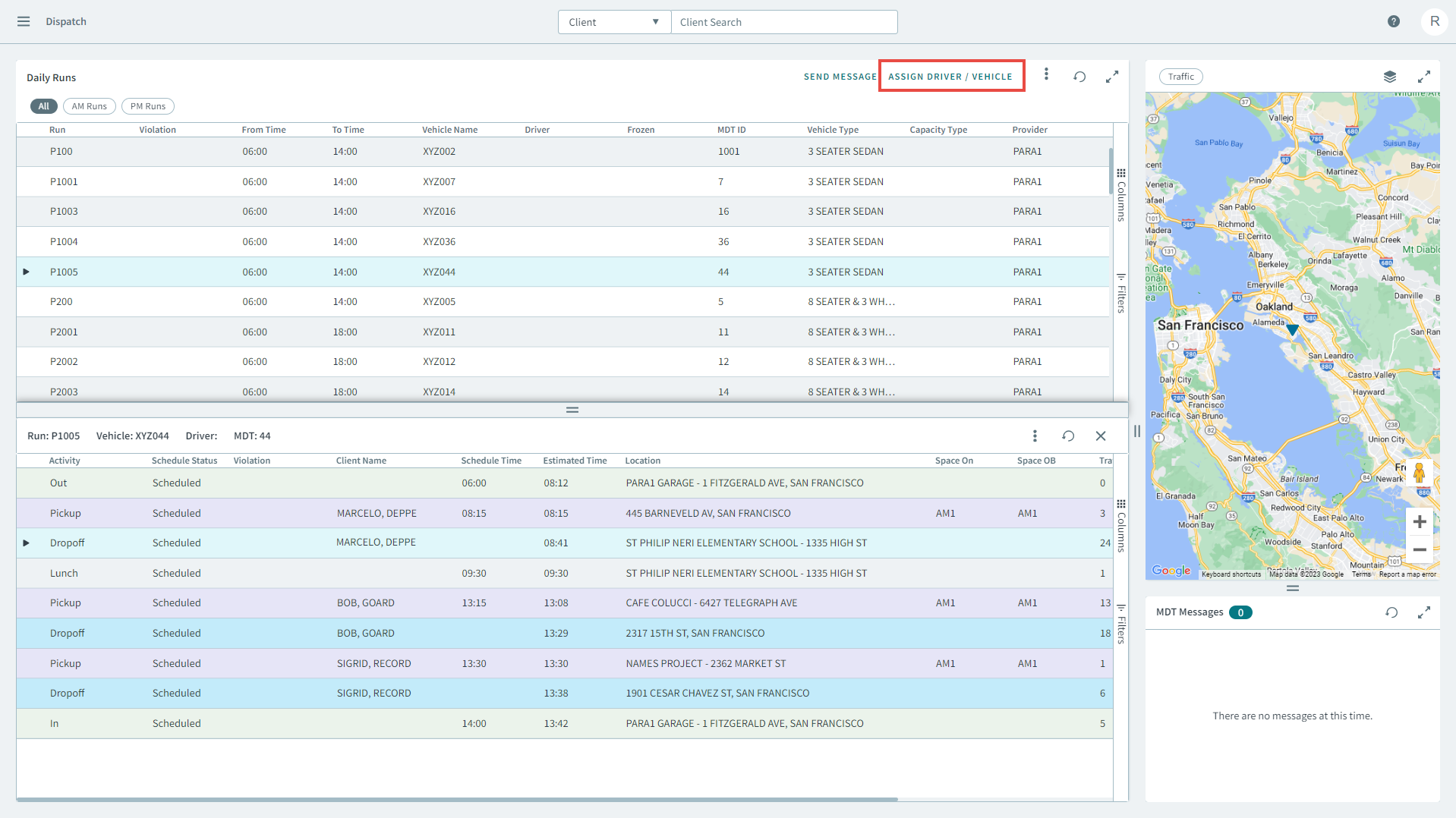
- Select a run from the grid.
-
In the upper right of the grid, click Assign
Driver/Vehicle
The Assign Driver/Vehicle pop-up window opens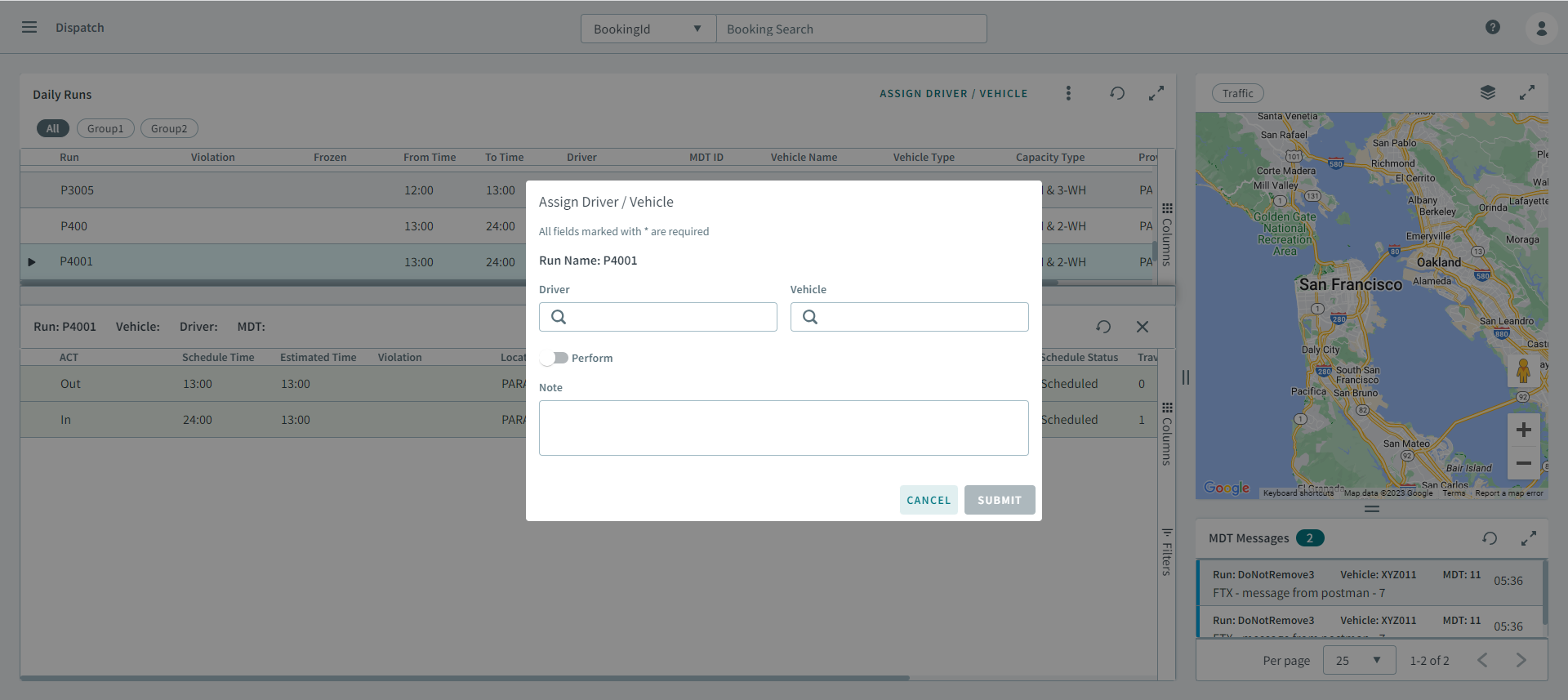
-
Enter a name in the Driver box.
Tip:Enter part of a name to auto-populate a list of matching drivers.
-
Enter a vehicle name in the Vehicle box.
Tip:Enter part of a vehicle name to auto-populate a list of matching vehicles.
- Optional:
Turn the Perform toggle on.
Time and odometer fields display.

- Optional: Enter information in the Note box.
- Click Submit.