
Defining Accessibility
Use the Accessibility tab to define a client's accessibility needs.
Before you begin
A client profile must be open.
About this task
Defining a client's accessibility is important for notifying other transit staff of a client's accessibility needs, for example, defining access points helps a driver know where to pick-up or drop off a client.
Procedure
-
In a client profile, click the Accessibility tab.
The Accessibility tab opens.
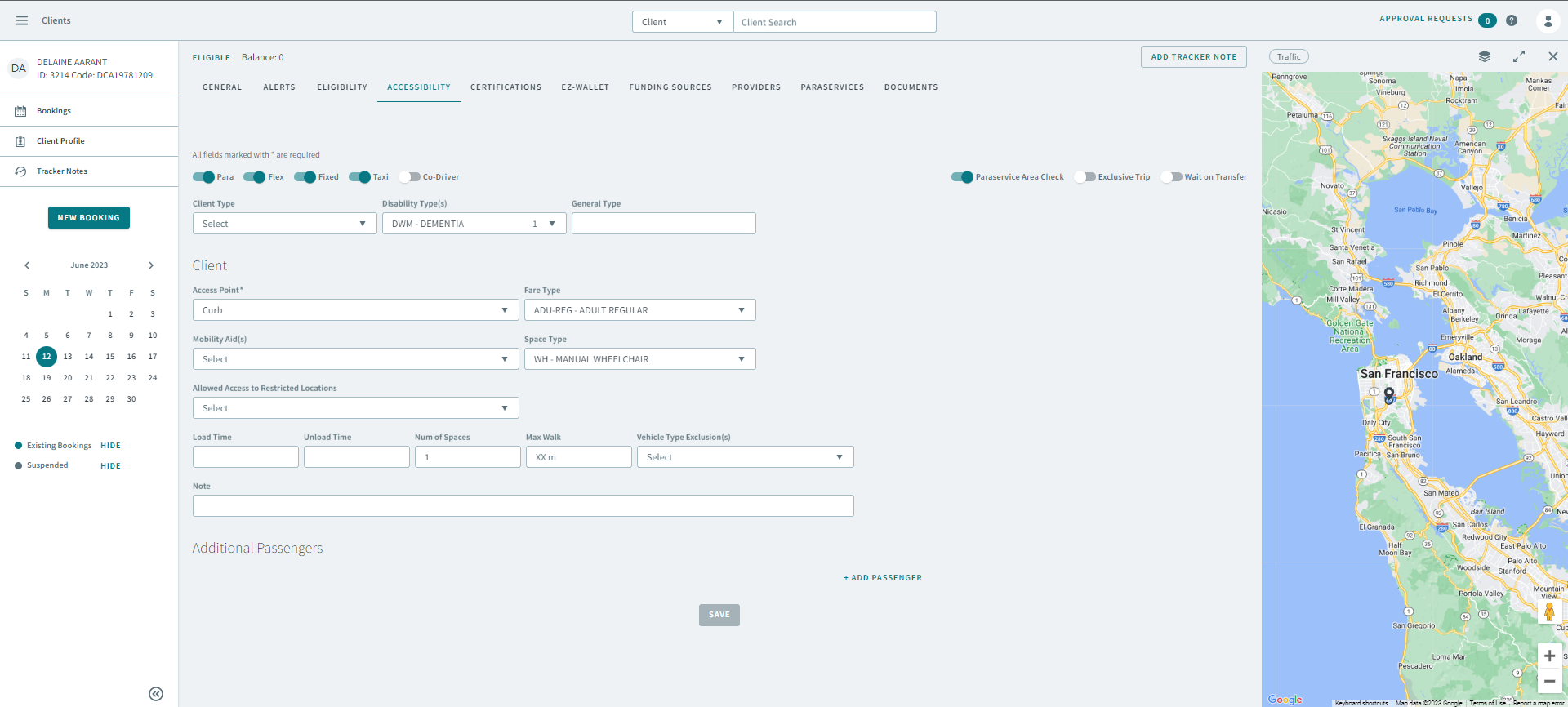
- Turn the following toggles on to indicate the modes of transport the client is eligible to ride on.
- Turn the toggles ON to enable the following restrictions for the client:
- Select a type from the Client Type dropdown list.
- Select a type from the Disability Type(s) dropdown list.
- Optional: Type up to three characters in General Type.
- In the Client section, select an option from the following dropdown lists:
- Enter the relevant information in the following text boxes:
- Optional:
Click Add Passenger to add an additional passenger that
will accompany the client on trips.
Select an option from the following dropdown lists to define the additional passenger's accessibility needs:
- Click Save.