
Suggesting Employees for Open Work
Employees can be suggested and then assigned for open work using the Daily Activity screen.
- Open the Daily Activity screen and set the Context (F3).
- Select a piece of open work.
-
Select Suggest Employee:
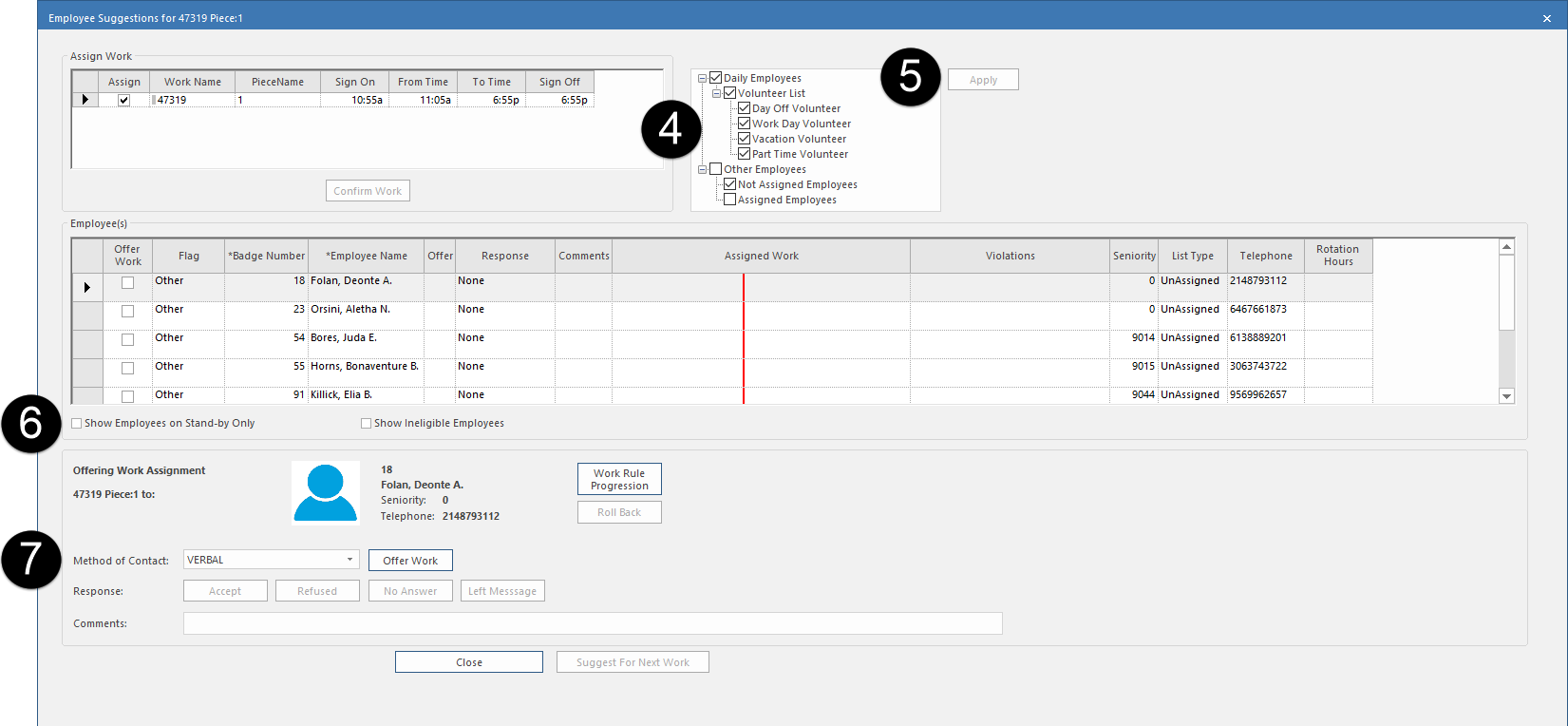
 The Employee Suggestions dialog opens. The name of the work is shown in the title bar.
 -
Select the employee list types for the employees to which to offer the
work.
Employees with absences can be suggested and assigned to work if the absence type's Coexist Work Type Group matches the work being assigned, or when the absence type's Open Work Action is Preserve Assigned Work.
-
Select Apply.
The Employee(s) pane shows all eligible employees for this work. The Offering Work Assignment pane lists the first employee.
- Optional: Select the Show Employees on Stand-by Only filter to show only stand-by employees or the Show Ineligible Employees filter to show employees not eligible for the work.
-
Select a Method of Contact and then Offer
Work.
-
After trying to contact the employee, do one of the
following:
- If the employee accepts the work, select Accept. The selected work is assigned to the employee.
- If the employee refuses the work, select Refused. The system records the refusal and selects the next eligible employee.
- If the employee doesn't respond to the offer of work, select No Answer. The system records that there was no answer and then selects the next eligible employee.
- If you left a message for the employee, select Left Message. The system records that you left a message and you can't offer the work to the next eligible employee. The system waits for you to record a response from the employee, even if you close and reopen the dialog.
- To move on to the next employee without contacting this one, select Skip Employee.