
Assigning Employees to a Group
Use the Employee Groups ancillary data screen to assign employees to groups. Only used for adding rotas.
- Open the Employee Groups screen.
- In the left pane, select the group to which to add employees.
- Click in the right pane.
-
In the screen toolbar, select Add Employee to Group:
 The Select Employees dialog appears.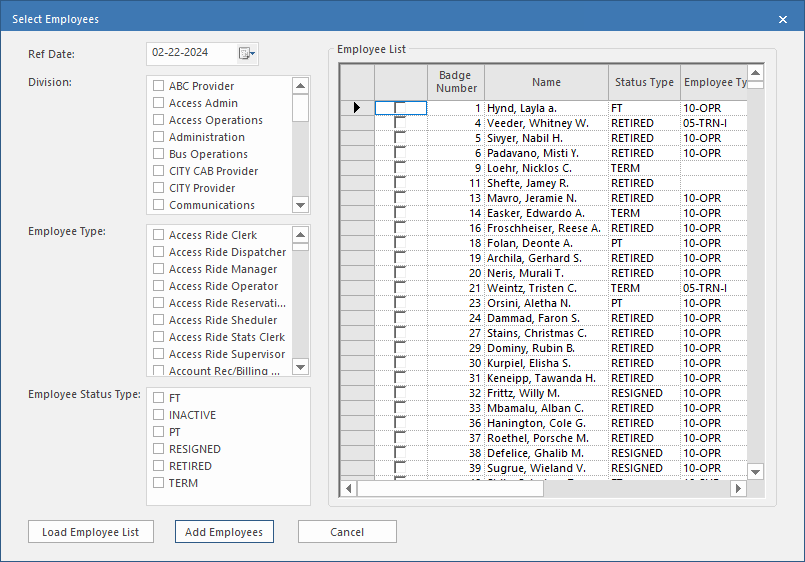
-
Enter the following criteria:
- Ref Date. Select the date as of which to find employees.
- Division. Select the divisions of the employees to find.
- Employee Type. Select the types of employee to find.
- Employee Status Type. Select the status type of employees to find.
-
Select Load Employee List.
The Employee List pane is filled with the employees who match your criteria.
- Select the employees to add.
- Select Add Employees.