
Creating Ancillary Groups
Ancillary groups are logical groupings of ancillary data that help simplify defining and editing that data elsewhere in the system.
- Select .
- Open the Context (F3).
-
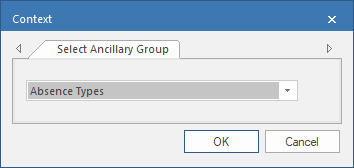
On the Select Ancillary Group tab, select a group
type.
-
Select OK.
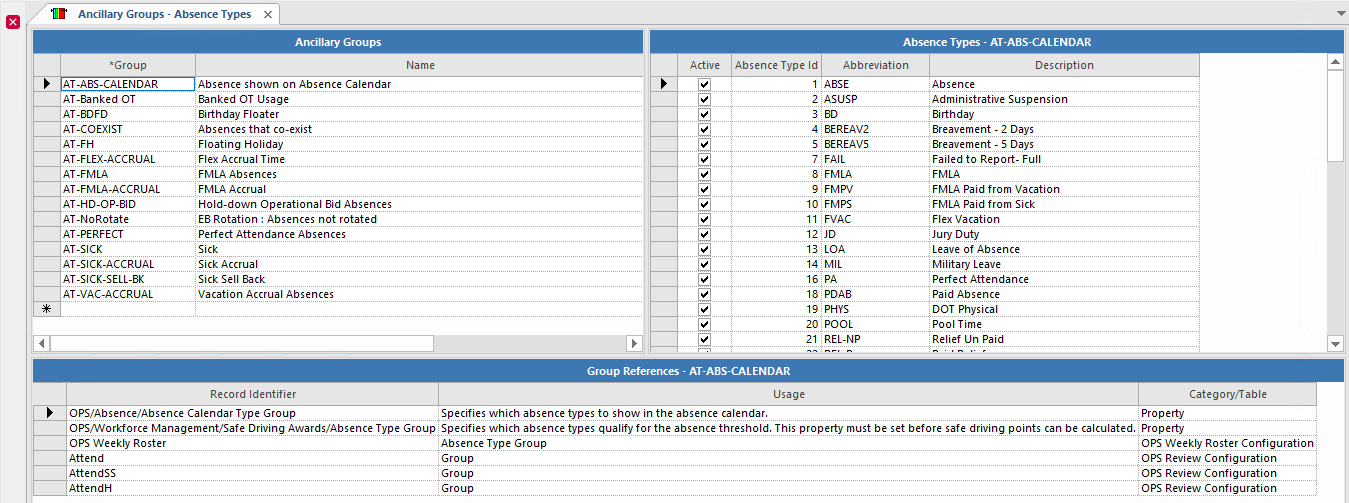
Matching ancillary groups appear.
-
In the left pane:
- Select the record with which to associate specific ancillary data options.
- In the right pane, select Active for the records to include in the ancillary group.
- Select Save.