
Creating Extraboard Employee Rotation Rules
Employee rotation rules can be created for extraboard types on an agency-by-agency basis.
Note: Previously, rotation rules were defined
in Properties and could only be applied to all
agencies.
Clients with existing rotation customization can ignore this feature and should speak to their Trapeze representative.
- Open the Extra Board Types ancillary data screen.
- Select an Extra Board Type.
-
Select Employee Rotation Rules:
 The Employee Rotation Rules dialog appears.
 -
Select the Agency for which to update rules.
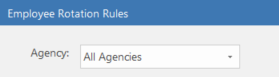
All Agencies contains default system values. If the default value for a rule is incorrect for your agencies, update the rule on an agency-by-agency basis.Rules applicable to the selected agency are shown.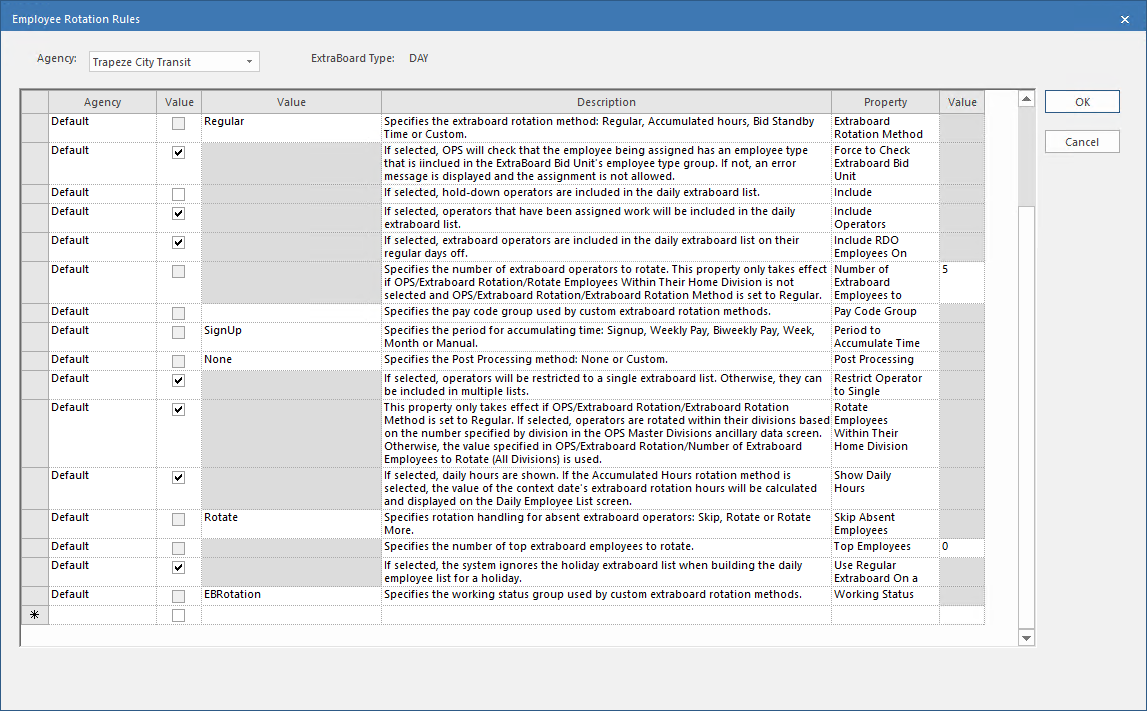
- In the starred row, select the Agency.
- Select a Property.
-
Define the property Value.
The value column used will be different depending on what type of value is assigned to the property.The three columns offer the following value options:
- Select or clear the checkbox to enable or disable the property. (The property Description typically begins If selected,.)
- A list of available options. (The value option is dimmed if it isn't available.)
- An entry field for adding a number value. (The value option is dimmed if it isn't available.)
-
Click the next starred row.
The defined value is saved.
-
If you can't see the newly defined rule, select the correct
Agency.
- Select OK.