
Creating Volunteer Employee Rotation Rules
Employee rotation rules can be created for volunteer types on an agency-by-agency basis.
Note: Previously, rotation rules were defined in Properties and
could only be applied to all agencies. Default values are created during the
installation process.
Clients with existing rotation customization can ignore this feature and should speak to their Trapeze representative.
- Open the Volunteer Types ancillary data screen.
- Select a Volunteer Type.
-
Select Employee Rotation Rules:
 The Employee Rotation Rules dialog appears.
 -
Select the Agency for which you will be updating
rules.
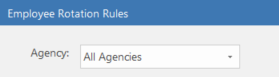
All Agencies contains default system values. If the default value for a rule is incorrect for your agencies, update the rule on an agency-by-agency basis.Rules applicable to the selected agency are shown. -
In the starred row, select the Agency.
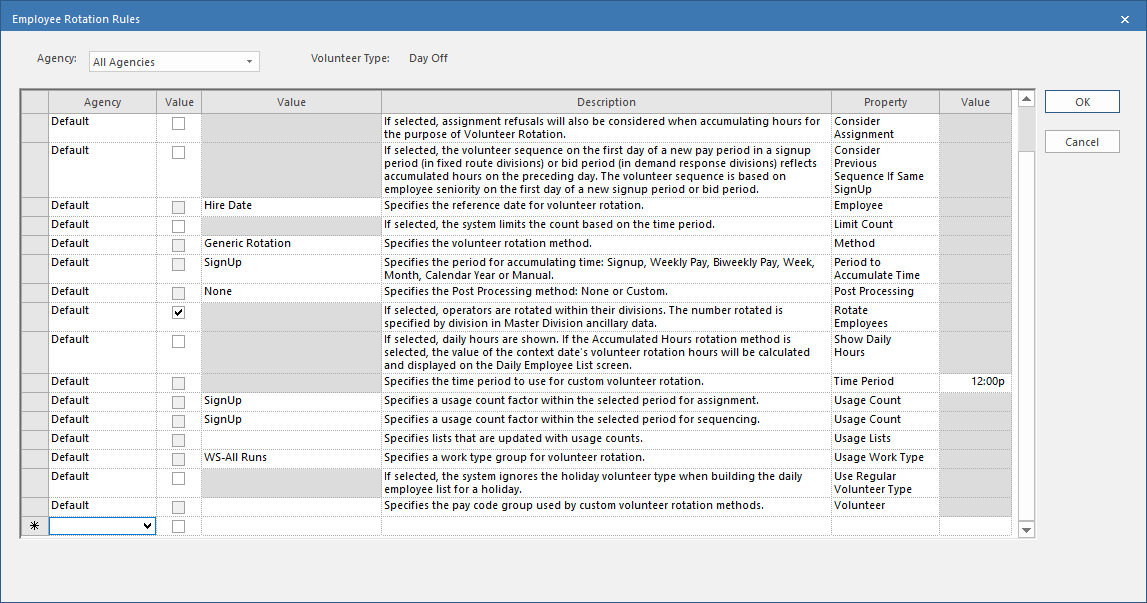
- Select a Property.
-
Define the property Value.
The column used is different depending on the type of value is assigned to the property.
-
Select the next starred row.
The defined value is saved.
-
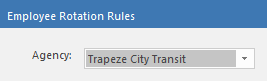
If you can't see the newly defined rule, select the correct
Agency.
- Select OK.